From Installed to Trading
You’ve funded your account and installed the EA. This checklist covers the last mile: getting the EA correctly onto a live chart, what to write down before the first trade, and a dated schedule for the first 30 days with explicit points at which to stop and investigate.
If you haven’t worked through the basics yet, our forex trading for beginners roadmap covers pip value, position sizing, and demo testing before you get to this stage.
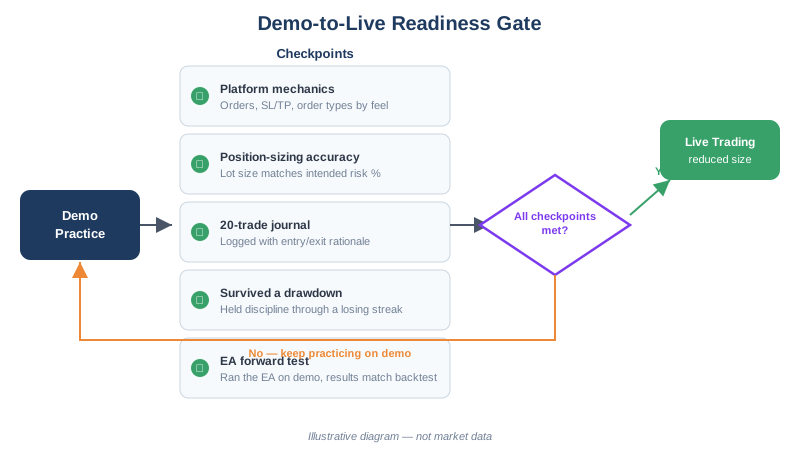
This checklist assumes at least 30 days of demo testing already behind you — long enough, ideally, to have seen the EA through a losing streak and not just a winning one. Our demo account guide covers that setup if you haven’t done it yet. Thirty days on demo doesn’t predict live results; it confirms the EA is configured correctly, that AutoTrading and WebRequest work, and that you know what a normal trade sequence looks like before real money is involved.
Pre-Flight Checklist
1. Confirm you’re on the right account. The terminal’s title bar shows the account number. Make sure it’s the live account you registered and funded — not a demo login left over from testing.
2. Allow WebRequest for license verification.
Go to Tools → Options → Expert Advisors, tick Allow WebRequest for listed URL, and add https://api.steadypips.net. Without this the EA cannot verify activation.
3. Enable AutoTrading — in both places.
- The AutoTrading button in the toolbar must be green (MT4) / enabled (MT5).
- In Tools → Options → Expert Advisors, Allow automated trading must be checked. A smiley face (MT4) or the EA name without a red mark (MT5) in the chart’s top-right corner means the EA is live.
4. Open the right chart. Each EA page lists its designed pairs and timeframe — for most of our EAs that’s an H1 chart of the listed majors. Attaching to a different pair or timeframe than the EA was designed and tested for changes its behavior.
5. Check the lot sizing before the first trade. Our EAs size positions from balance and risk percentage. With a $200–$500 balance, expect 0.01 lots per trade. If you see anything larger on a small account, stop and re-check the risk settings (lot sizes explained).
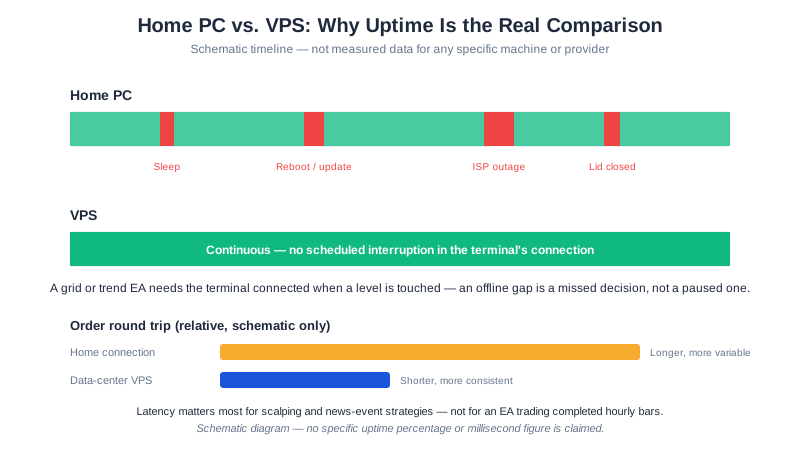
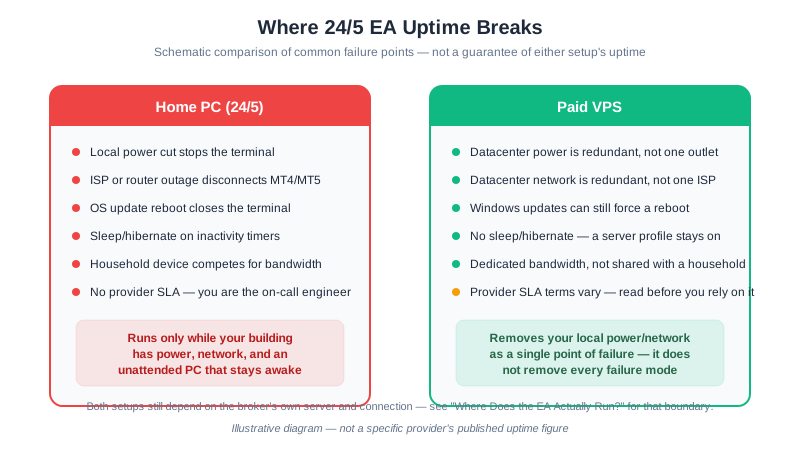
6. Leave the terminal running. An EA only trades while MetaTrader is open and connected. For 24/5 operation without leaving your computer on, use a VPS — here’s when it’s worth it.
Numbers to Write Down Before You Start
Fill this in before the first trade, not after a loss makes you want different numbers:
| What to write down | Your number | How to get it |
|---|---|---|
| Account balance | $______ | From the terminal’s Trade tab |
| Risk % per trade | ______% | The EA’s risk input, typically 1–2% |
| Expected lot size | ______ lots | Balance × Risk% ÷ (stop pips × pip value) — see lot sizing math |
| Max acceptable drawdown, in dollars | $______ | Pick a figure before trading, not during a losing streak |
| Balance at which you stop trading entirely | $______ | Pre-committed — decide this now, while you have no open positions to defend |
Worked example: $500 balance, 1% risk, 50-pip stop, $0.10/pip at 0.01 lots. Expected lot size = ($500 × 0.01) ÷ (50 × $10/lot) = 0.01 lots — matches the 0.01 lots you should see in step 5 above. If your stop-trading point is $350 (a 30% drawdown from $500), write $350 down now — not in the moment you’re already at $360.
The First 30 Days
If the first live trade is a loss, do nothing — provided the loss matches the risk percentage you wrote down above and the position had a stop attached. A single losing trade tells you nothing about the strategy; every EA on this site has losing trades by design. Check that the dollar loss matches the number you pre-committed; if it does, that’s the system working, not failing.
The schedule below is also the answer to a harder question: when should you stop and reconsider the whole setup, not just one trade? Any abort criterion in the right-hand column below — a stop-less position, a lot size far above what you calculated, a repeated error in the Experts log, or drawdown reaching half your pre-committed stop-trading number inside the first two weeks — points to a configuration problem, not ordinary variance. Continuing to trade past one of these compounds a mistake rather than testing a strategy.
| When | Check | Abort if |
|---|---|---|
| Day 1 | Lot size matches your written expected size; every open position shows a stop-loss | Lot size is several times larger than expected, or a position has no stop — detach the EA and review inputs |
| Day 3 | Experts tab log shows no repeated error on every tick | The same error has appeared on every tick for three days with zero trades placed — a configuration problem, not market conditions |
| Week 1 | Realized risk per trade (position size × stop distance) matches your written risk % | Realized risk is 50%+ above your written number, twice in a row |
| Week 2 | Cumulative drawdown against your pre-committed dollar figure above | Drawdown has already reached half your stop-trading number — the sample is tiny, but that pace isn’t sustainable |
| Week 4 | Trade frequency and behavior resemble the EA’s documented shape (see backtest results where published) | Nothing resembles the documented behavior at all — for example, an EA documented at a few trades a month has fired dozens |
Three Things That Are Normal (and Three That Are Not)
You don’t need to watch the account constantly during the first month — check on the schedule above rather than randomly. Constant watching invites overriding the EA’s own logic; going weeks without checking risks missing a genuine malfunction. A short daily glance plus the scheduled checkpoints above covers both risks.
Normal:
- A losing streak of several trades in a row — every strategy has them, and a small early sample tells you nothing.
- Multiple days, or weeks, with zero trades. Our EAs wait for their entry conditions; the Experts tab logs what it’s doing in the meantime.
- Lot size changing slightly between trades as balance changes — that’s the position-sizing math recalculating, not a bug.
Not normal — investigate immediately:
- A position open with no stop-loss visible in the terminal.
- A lot size far above the number you wrote down before starting.
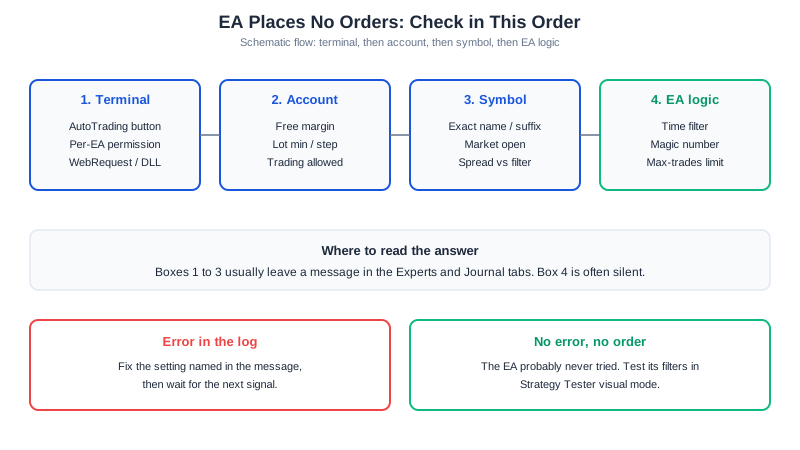
- The same error repeating in the Experts log without the EA ever managing to place a trade.
Quick Troubleshooting
| Symptom | Usual cause |
|---|---|
| Sad face / EA name with red mark on chart | AutoTrading disabled — check both toggles in step 3 |
| “WebRequest not allowed” in Experts tab | Step 2 skipped — add the API URL |
| EA runs but never trades | Conditions not met yet, or lot size computes below 0.01 (balance too small — see funding guide) |
| Trades far larger than expected | Risk settings misconfigured — detach the EA, review inputs |
Stuck on something not listed? Ask in our Telegram channel — setup questions are what it’s for.
Keep Learning
- Forex Trading for Beginners — the fundamentals to cover before your first live trade
- Lot Sizes Explained — the arithmetic behind the sizing table above
- XM Deposit Guide — funding the account this checklist assumes is live
- How to Install an EA — the step before this checklist
- Backtest Results & Methodology — what “normal” looks like over a longer sample
Affiliate Disclosure: Links to XM are affiliate links. We receive a commission at no cost to you. Full disclosure
Risk Warning: Automated trading involves substantial risk. Past EA performance does not guarantee future results. Never trade with money you cannot afford to lose.