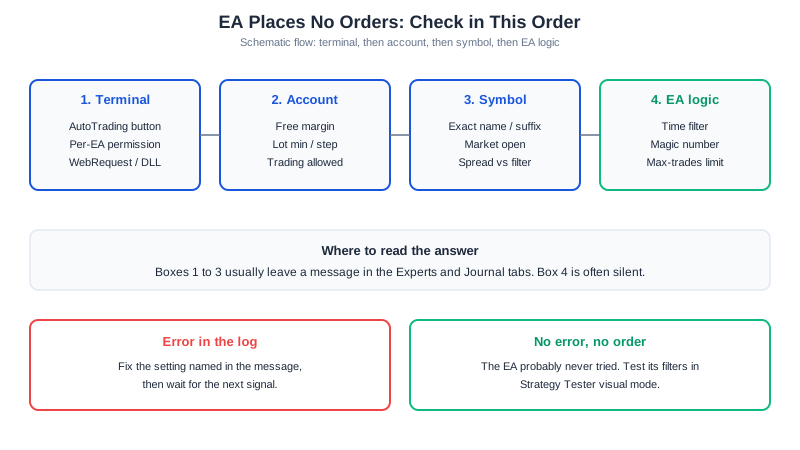
Quick Answer: When an MT4 or MT5 EA places no orders, check the AutoTrading button and the Experts tab first, because most cases show up there within a minute. If the log shows an error, the cause sits in the terminal, the account or the symbol. If the log is silent, the EA probably never tried to trade, and the cause is usually a filter inside its own logic, such as a time, spread or trade-count limit.
The 9 Checks at a Glance
When an EA sits idle, the cause is rarely the strategy itself. Most retail traders lose money, and an EA that does nothing at least loses nothing, but you still want to know why it is silent. Work down this table in order.
| # | Cause | Where to look | Fix |
|---|---|---|---|
| 1 | AutoTrading switched off | Toolbar button, chart-corner icon | Turn AutoTrading on |
| 2 | EA permission unticked | EA properties, Common tab | Tick the live/auto trading permission |
| 3 | WebRequest or DLL not allowed | Tools, Options, Expert Advisors | Allow the listed URL or DLL if the EA needs it |
| 4 | Wrong symbol name | Market Watch | Attach to the broker’s exact symbol |
| 5 | Not enough free margin | Trade tab, Experts tab | Lower lot size or add funds |
| 6 | Lot below minimum or off-step | Symbol specification | Set a valid lot |
| 7 | Market closed or trading disabled | Journal tab, Market Watch | Wait for the session, check the account |
| 8 | Spread or time filter blocking | EA inputs | Compare filter with current conditions |
| 9 | Magic number or trade-limit clash | EA inputs, open trades | Use a unique magic number, raise the limit |
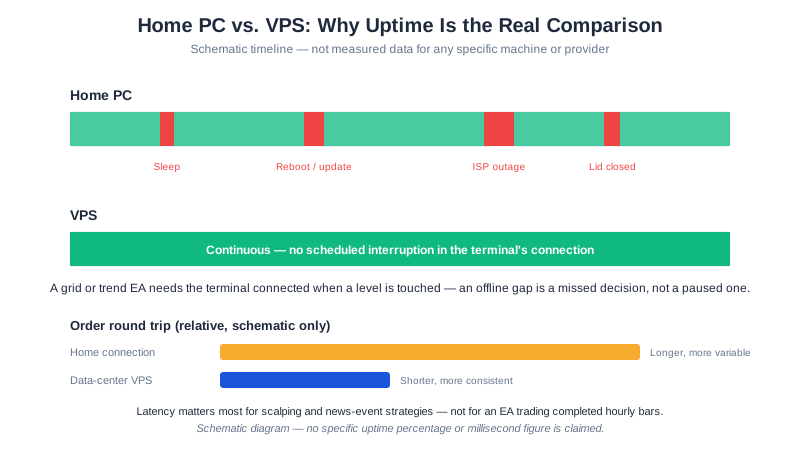
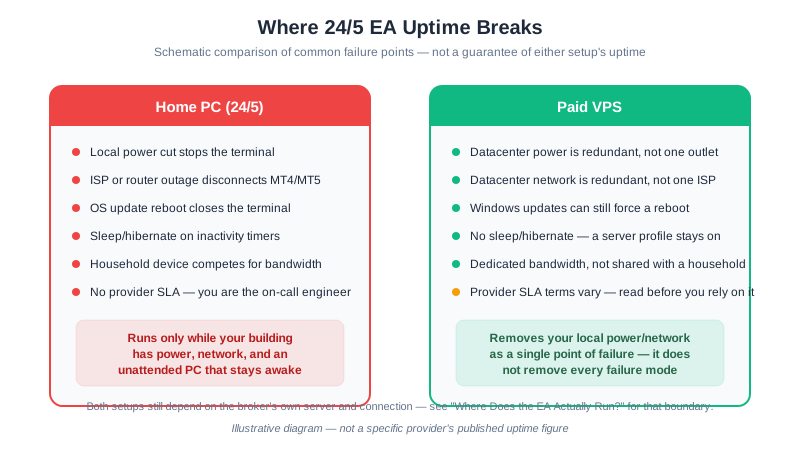
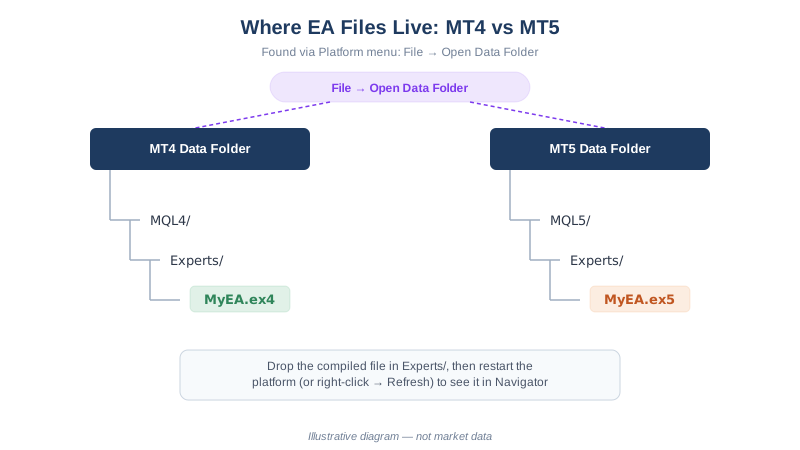
VPS and update problems sit under check 1, because they end the same way: the terminal is not running or has reset its permissions. Install problems such as the wrong data folder are covered in how to install an EA on MT4 and MT5.
1. AutoTrading Is Off
The AutoTrading button in the toolbar is a platform-wide master switch. MetaQuotes documents that turning it off disables automated trading for all Expert Advisors, even ones enabled individually (as documented by MetaQuotes, MetaTrader 5 help). A running EA shows a status icon in the chart’s upper right corner, and the same page says a disabled icon means the EA is not allowed to trade. On MT4 the equivalent cue is the smiley face in the corner: a frown means trading is off.
In the log, look for a message saying automated trading is disabled. In MT5 this corresponds to return code 10027, which MetaQuotes describes as automated trading turned off in the client terminal (as documented by MetaQuotes, MQL5 trade return codes).
Terminals that switch it off for you. Under Tools, Options, Expert Advisors, MetaTrader has options to disable automated trading when you switch accounts, profiles, or chart symbols and period (as documented by MetaQuotes, MetaTrader 5 settings help). If an EA stops after you change account or timeframe, look here first. The same applies after a restart or update on a VPS: confirm the button is on again.
2. The EA’s Own Permission Is Unticked
Double-click the EA name in the chart corner (or right-click the chart, then Expert Advisors, Properties) and open the Common tab. The live-trading permission there is separate from the toolbar button, and the toolbar button overrides it when off. MetaQuotes describes the MT5 option as “Allow Auto Trading” at the bottom of the Common tab; MT4 words it “Allow live trading”.
The MT4 log message to look for is error 4109, which MetaQuotes documents as “Trade is not allowed. Enable checkbox ‘Allow live trading’ in the Expert Advisor properties” (as documented by MetaQuotes, MQL4 error codes). Errors 4110 and 4111 are the long-only and short-only variants.
3. WebRequest and DLL Permissions
If the EA calls a licence server or web service, Tools, Options, Expert Advisors has “Allow WebRequest for listed URL” and “Allow DLL imports”, the latter flagged by MetaTrader as potentially dangerous and to be enabled only for trusted applications. When an EA depends on one of these, a missing permission can stop it before it reaches the order logic. Our install guide lists which permissions our EAs need. Only add URLs and DLLs you recognise.
4. The Symbol Name Does Not Match
Brokers add suffixes, so EURUSD may appear as EURUSD.m or EURUSDmicro on your account. Open Market Watch, right-click, choose Symbols, and use the exact name. If the EA has an input for a symbol, prefix or suffix, fill it in. If it trades the chart symbol, attach it to a chart opened from Market Watch. A name mismatch often leaves no order attempt at all, which is why the log can be empty.
5. Not Enough Free Margin
Check Free Margin on the Trade tab. If the EA sizes its lot from a risk percentage, a small balance can produce a lot the account cannot margin. MetaQuotes documents MQL4 error 134 as “Not enough money” and MT5 retcode 10019 as the account lacking the funds to complete the request. Lower the risk input or lot, or confirm you are logged in to the account you think you are.
6. Lot Size Below Minimum or Off-Step
Every symbol has a minimum volume, a maximum and a step, shown in the symbol specification (right-click the symbol in Market Watch, then Specification). A computed 0.004 lot on a symbol with a 0.01 minimum is rejected. MetaQuotes documents MQL4 error 131 as “Invalid trade volume” and MT5 retcode 10014 as an invalid volume. Cent and micro accounts often have different minimums than standard ones, so settings copied from another account can fail here.
7. Market Closed or Trading Disabled
Forex closes for the weekend, and some symbols have daily breaks. MetaQuotes documents MQL4 error 132 “Market is closed” and error 133 “Trade is disabled”; for MT5 it documents retcode 10018 for a closed market and 10017 for trading not allowed. Trading can also be blocked on a specific login, for example an investor (read-only) password, with which no EA can trade. The Journal tab shows the rejection. For other differences in how the two platforms behave, see MT4 vs MT5 for expert advisors.
8. Spread and Time Filters Inside the EA
Many EAs refuse to trade when the spread is above a limit, or outside a session window. These filters are silent on purpose, so the Experts tab shows nothing. Open the inputs and compare each filter with the present state:
- Max spread: compare the input with the live spread in Market Watch. Spreads widen at rollover and around news.
- Session window: check whether the hours refer to broker server time or your local time. Market Watch shows server time, which can differ from your clock by hours.
- Day filters: some EAs skip certain weekdays or the first hours of the week.
Loosening a filter changes how the EA behaves, so do it on a demo account first and read the EA’s own documentation, for example the GridMaster setup guide.
9. Magic Number and One-Trade Logic
EAs identify their own orders by magic number. If two EAs share one, each may count the other’s trades and conclude its position limit is reached. A “max trades” or “one position per symbol” input also stops new entries while an old trade is open. Give every EA instance a unique magic number and check the open trades list.
How to Tell Terminal Trouble From EA Logic
Run the same EA with the same inputs in the Strategy Tester in visual mode, on a symbol and period with data. If the tester opens trades, the EA logic works and your live problem sits in the terminal, account or symbol. If the tester is silent as well, the logic or a filter is blocking it. Our backtesting guide covers the tester settings. An EA that is silent in both places is behaving as coded, not broken.
To test this with a known EA, our free builds are on the GridMaster page and the download page. Run them on a demo account first, for example one opened through our XM demo account link . Nothing here is a performance claim, and any EA can lose money.
A 5-Step Checklist
- Turn AutoTrading on and confirm the chart icon shows enabled.
- Read the Experts and Journal tabs for the last few messages.
- Verify the symbol name, free margin, and lot against the specification.
- Compare each EA filter (spread, time, magic number, trade limit) with current conditions.
- Reproduce in the Strategy Tester. If it trades there, fix the terminal; if not, fix the EA settings.
If the EA runs on a VPS, also check the terminal is still logged in after any restart or update. Our roundup of cheap forex VPS options covers running costs.